Tag: react

  • Understanding React useEffect Hook

    In React applications development, there are times when we may want some piece of code to be executed after a component has been rendered. For example, we may want some configuration settings loaded after the application starts execution. In another example, we may want to run some piece of code in response to a change in a specific state variable.

    To execute some code logic outside React’s virtual DOM, we need to wait until React has rendered the component, and then invoke useEffect hook to run a function that executes the side effect code.

    In this post, we will examine side effects, and the need to invoke useEffect hook to asynchronously run a function to execute a side effect code. We will also consider how we can control the execution of side effect code with dependencies.

    Table of Contents

    What are Side Effects?

    React, as you may know, is a javascript library for building user interfaces. It is used for building visual elements in web and mobile applications. However, many useful applications are not complete with only UI elements. They may interact with resources that are outside of UI presentation.

    For example, applications may need to interact with resources such as files, browsers DOM, localStorage, fetch data from databases and external API, etc. Such interactions with resources outside React are referred to as side effects. Such application codes outside React’s UI presentation are executed with useEffect hook.

    useEffect Runs Side Effect Function

    As ealier indicated, a React application may need to interact with resources outside of the UI code. We have referred to such external interactions as side effects. For any React component, if there is the need to execute side effects, we need to inform React about the function that needs to be called to interact with external resources.

    React useEffect hook is used to call a function that executes outside of React’s virtual DOM. Thus, useEffect hook is used to call a function that runs side effect code. It accepts a mandatory function as the first argument and an optional dependency array as second argument. The code inside the function passed to the useEffect hook is the side effect code we intend to run. It has the following signature:

    JavaScript
    // useEffect function signature
    useEffect(side_effect_function, [optional_dependency]);

    The function which is called to execute side effect code can be a named function or an anonymous function. Executing side effect code with anonymous function is the most common practice. For example, the following code passes an anonymous function to useEffect:

    JavaScript
    // execute side effect code with anonymous function
    useEffect(() => {
        document.title = 'Understanding useEffect Hook';
    });

    The alternative call, which is less common, is to pass the name of the function that executes side effect code. An example is shown below:

    JavaScript
    // execute side effect code with named function
    useEffect(setTitle);
    
    // side effect function
    function setTitle() {
        document.title = 'Understanding useEffect Hook';
    }

    From the above code, it can be observed that setTitle() interacts with the browser’s document object. This document object is outside of React’s UI presentation. Since this is a side effect, we execute setTitle() with a useEffect call on line 2.

    Parts of Side Effect Function

    A side effect function, which is run by useEffect hook, has two parts. These are the side effect code and the cleanup code. The parts of the side effect function are explained below:

    1. Side Effect Code: This is the actual side effect code that is run by the function. It may include tasks such as fetching data from an API, connecting to a database, manipulating the browser’s DOM, interacting with the browsers localStorage, etc. In sum, this is the main task that the side effect function performs.
    2. Cleanup Code (Optional): This is the code to be executed when the component is about to be unmounted from the DOM. For example, if the side effect code performs tasks which involve allocating memory, registering events, or other resource usages, then this is the part where cleanup must be done. This part is where any allocated memory must be freed, registered events must be unregistered, etc.

    Within the side effect function, the side effect code is mainly the code in the body of the side effect function excluding a return statement.

    JavaScript
    useEffect(() => {
        /*
         * the side effect code for the function somewhere here.
         * This is the part of the code with return statement excluded
         */
         document.title = 'Hello React';
    });

    From listing 4, the side effect code is the code in the body of the anonymous function passed to the useEffect hook. This is the actual task that we want the function to perform. In this example, the function sets the title of the HTML document. The side effect code does not include a return statement.

    If there is the need to perform any cleanup, it must be done by another function. For React to know that a cleanup will need to be performed before the component unmounts, we will need to return the function that performs the cleanup from the side effect function passed to useEffect.

    From the code in listing 5 below, the function called to perform side effect returns a function that will need to be called to perform cleanup:

    JavaScript
    useEffect(() => {
        // the side effect code for the function somewhere here
        
        /* when the component is about to be unmounted, the
         * return function below will be called to perform
         * any cleanup before component unmount is done
         */
        return () => {
            // perform cleanup, such as unregistering events, release 
            // of resources created and used in side effect, etc.
        };
    });

    We can observe that there is a return statement on line 8. As can be seen, line 8 returns a function. This is a cleanup function. When present, React will remember this function but will not call it immediately. This cleanup function will be called to perform any cleanup of resources allocated when React is about to unmount the component within which the side effect was performed.

    Just as a return statement is optional in any javascript function, the cleanup function is also optional. This is because not all side effect codes use memory allocating resources or subscribe to some events. Such side effect codes do not require cleanup. In such cases, there is no need to return a cleanup function..

    Since a cleanup function is optional, it implies that we can write a side effect code without returning a cleanup function. For example:

    JavaScript
    useEffect(() => {
        // interacting directly with the browser document is side effect
        document.title = 'React Applications Development';
    });

    Considering the above code, no cleanup is required to be done after the execution of the side effect code. Due to this, we do not return any cleanup function.

    When Does useEffect Execute?

    A useEffect hook is always executed when the component first mounts (first render), and optionally on component updates (re-render). This implies that a useEffect hook will be invoked at least once.

    The first execution occurs after the component first renders. Whether it will execute again or not depends on some specified props and or state variables defined as the second argument, a dependency array.

    To better understand when a useEffect hook usage, we will look at when side effect code executes and different ways in which we can control its subsequent execution.

    1. Component Mount and All Updates

    By default, a useEffect will always run when the component is rendered for the first time, and subsequently execute whenever the component updates. In other words, it will execute on all component renders, whether on first render (mount) or re-renders (updates). This is the default uncontrolled behaviour.

    To execute a useEffect hook anytime on component mount and component updates, we will need to pass only the first argument, which is the side effect function, to useEffect hook. In this case, the second argument, which is the dependency array, should not be passed.

    JavaScript
    useEffect(side_effect_function);

    As can be seen, we are only passing the side effect function as the first argument without passing the second argument to useEffect. An example is shown below:

    JavaScript
    useEffect(() => {
        // side effect code here
    });

    The following code is a working example of useEffect hook that runs a side effect function when the component is first mounted and when the component is updated.

    JavaScript
    // perform necessary imports
    import React, {useState, useEffect} from "react";
    
    const App = () => {
        // state variable for heading text
        const [heading, setHeading] = useState('Sample Text');
    
        // call the argument function to set the document title
        // when this App component first mounts in the DOM and 
        // anytime the App component is updated
        useEffect(() => {
            // set the title of the HTML document
            document.title = heading;
        });
    
        return (
            <div style={{textAlign: 'center'}}>
                <h2>{heading}</h2>
                <hr />
    
                <div style={{marginTop: '20px'}}>
                    <label>Enter Text: </label>
                    <input type='text' onChange={(e) => setHeading(e.target.value)} />
                </div>
            </div>
        )
    }
    
    export default App;

    We have said that a useEffect hook will always run at least once: when the component in which it is contained is mounted for the first time.

    Since a useEffect hook is executed after component mount, the HTML document title is set to the heading state variable, which by then has the value 'Sample Text'. Hence the title of the HTML document will be set to Sample Text when the document load is completed.

    We have also indicated that subsequent execution of side effect code depends on the second argument passed to useEffect. Since we did not pass the second argument to the useEffect call, the side effect code will always be executed when the component updates.

    On line 23, in listing 9, an onChange event handler, setHeading, updates state variable heading as we enter text in the input control. The heading state variable is also set to the <h2></h2> tag on line 18, causing the App component to update.

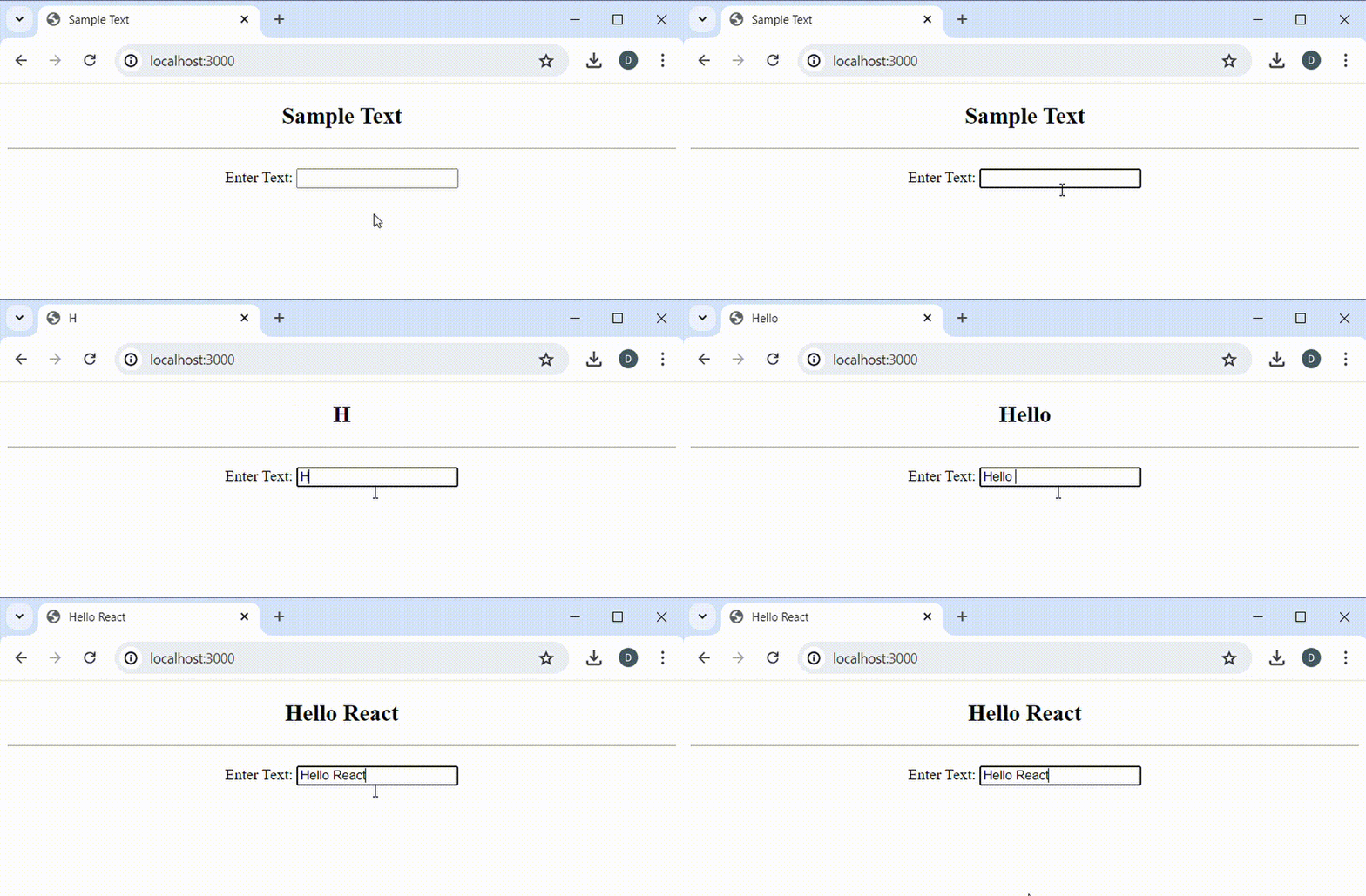
    An update to the App component triggers the useEffect call to set the title of the document to the state variable heading. The result is that whenever we type in the input control, the entered text is updated in the h2 heading text, and is subsequently set as the HTML document title.
    useeffect

    As we type in the input control, the App component is re-rendered to update the heading text. However, because we did not pass any dependency value to useEffect, the side effect code is executed whenever the App component updates. Thus, the change in the heading text is also reflected in the change in the title of the HTML document.

    2. Component Mount and Conditional State / Prop Update

    Recall that the second argument passed to useEffect is a dependency information. It tells that, after the first execution on mount, any further execution of the side effect code depends on some condition or state of some specified variables. React allows us to specify multiple states or props which, when they change, trigger further execution of the side effect code.

    We can specify the dependent state or prop variables as an array and pass this dependency array as the second argument to useEffect hook call:

    JavaScript
    useEffect(side_effect_function, [dependency_state_variables]);

    In the above code, we have specified the second argument to useEffect as an array. The dependency array contains the state or prop variables that the side effect code will depend on for further execution. For example:

    JavaScript
    useEffect(() => {
        // side effect code here
    }, [var1]);

    After the first execution of the side effect code on component mount, further execution will only occur when var1 changes.

    If there are multiple state or prop variables that the side effect code will depend on for further execution, they will need to be separated by comma in the array delimiter:

    JavaScript
    useEffect(() => {
        // side effect code here
    }, [var1, var1, var3]);

    From the above code listing, we are actually saying that, after the first execution on component mount, the side effect code should be executed again when a change occurs in either var1, var2, or var3. Thus, further execution of the side effect code depends on changes in the state or prop variables specified in the dependency array.

    To demonstrate with an example, we will consider one similar to the previous demonstration. Rather than update the title of the HTML document as we type in the input control, we will rather update only the content heading. The HTML document title will be updated to the entered heading text after a button is clicked.

    JavaScript
    // perform necessary imports
    import React, {useState, useEffect} from "react";
    
    const App = () => {
        // state variable for heading text
        const [heading, setHeading] = useState('Sample Text');
        const [canSetTitle, setCanSetTitle] = useState(false);
    
        // call the argument function to set the document title
        // when this App component first mounts in the DOM and 
        // anytime the App component is updated
        useEffect(() => {
            // set the title of the HTML document
            document.title = canSetTitle ? heading : document.title;
        }, [canSetTitle]);
    
        const onInputChange = (e) => {
            setHeading(e.target.value);
            setCanSetTitle(false);
        }
        
        return (
            <div style={{textAlign: 'center'}}>
                <h2>{heading}</h2>
                <hr />
    
                <div style={{marginTop: '20px'}}>
                    <label>Enter Text: </label>
                    <input type='text' onChange={onInputChange} />
                    <button onClick={() => { setCanSetTitle(true) }}>Set Title</button>
                </div>
            </div>
        )
    }
    
    export default App;

    On line 7, we declare boolean state variable canSetTitle, which we will use to determine whether we can set the title of the HTML document or not. Since this is a side effect, we execute with a useEffect call on line 12.

    The side effect code will be executed when the App component first mounts. However its subsequent execution will be done when canSetTitle state variable changes. This is because we have passed canSetTitle state variable as a dependency in the array passed as second argument to the the useEffect call.

    As we type in the input control, the onInputChange event handler is called to set the content heading. This time, the document title is not set automatically. The onInputChange event handler rather sets canSetTitle state variable to false.

    A click on the button updates canSetTitle to true. This update in the state variable, set as a dependency on line 15, causes the side effect code to execute. If canSetTitle is true, then the document title is set to the heading text. However, if canSetTitle is false, the title is maintained.
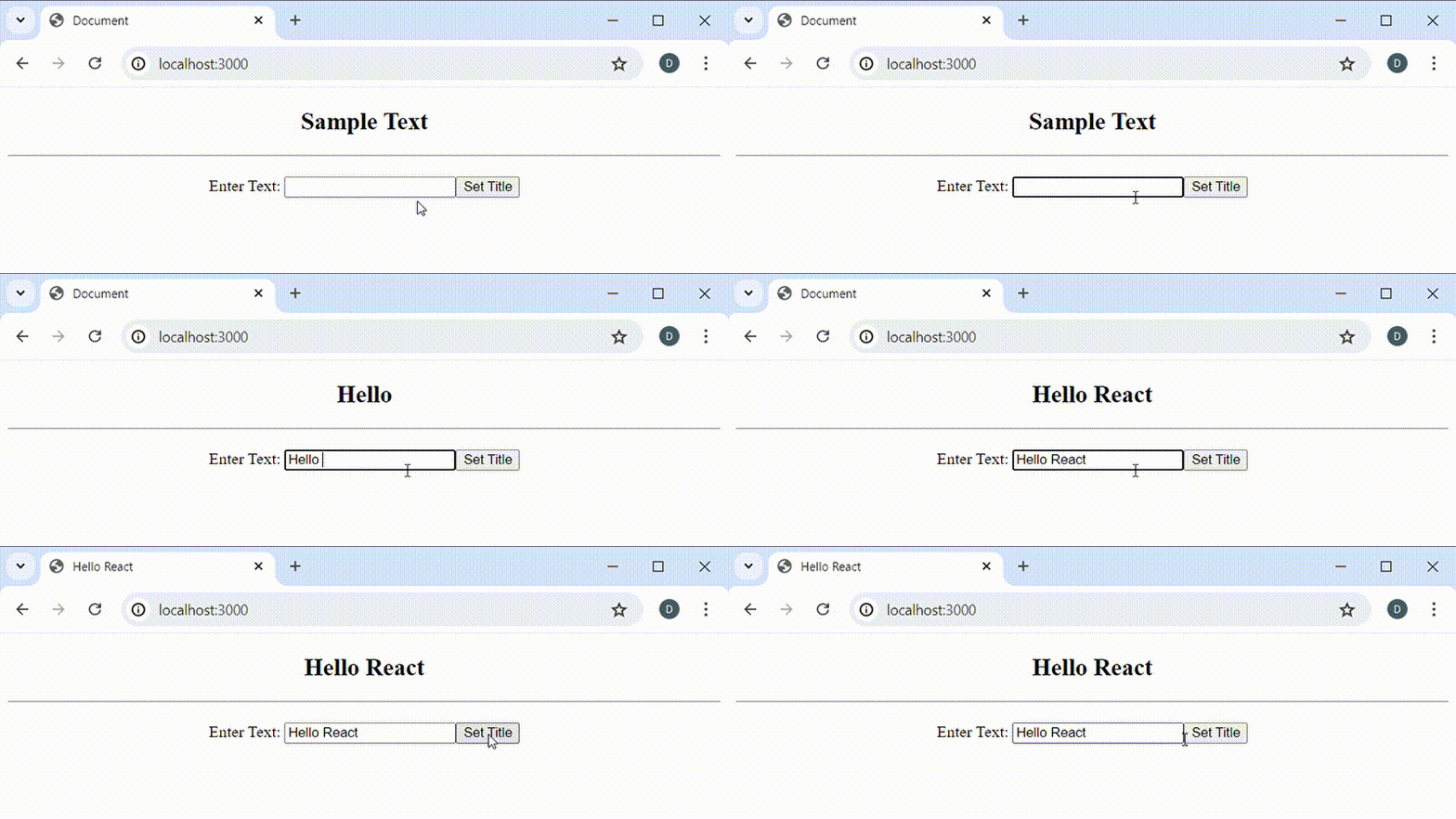
    As we type in the input control, the content heading updates. However, the title of the HTML document does not update until the button is clicked. This is because the side effect code which updates the HTML document title depends on changes in the state variable canSetTitle.

    3. Component Mount Only

    Sometimes, we may want to execute side effect code only once when a component is mounted (first render). In this case, we wouldn’t want the side effect code to be executed any further. For example, after an App component is mounted, we may want to load some configuration settings from an external server. Once the configuration settings are loaded, we may not want to load the same configuration settings again just because there is a UI update.

    To execute a side effect code only once, we will need to pass an empty array as the second argument to the useEffect hook call:

    JavaScript
    useEffect(() => {
        // side effect code here
    }, []);

    The side effect code will be executed when the component is first mounted. However, because the dependency array is empty, there wouldn’t be any prop or state variable to trigger further execution. The result is that the side effect code will never be executed again.

    The following code listing is a slight update to listing 13 seen earlier. For brevity, let’s see line 12 to line 15 in listing 13, shown below:

    JavaScript
    useEffect(() => {
        // set the title of the HTML document
        document.title = canSetTitle ? heading : document.title;
    }, [canSetTitle]);

    The only update we will do is to clear canSetTitle from the dependency array. This will mean that we will have an empty array as the second argument to the useEffect hook call.

    JavaScript
    useEffect(() => {
        // set the title of the HTML document
        document.title = canSetTitle ? heading : document.title;
    }, []);

    Every other part of listing 13 must be left intact. The complete code after the performing the update is shown below:

    JavaScript
    // perform necessary imports
    import React, {useState, useEffect} from "react";
    
    const App = () => {
        // state variable for heading text
        const [heading, setHeading] = useState('Sample Text');
        const [canSetTitle, setCanSetTitle] = useState(false);
    
        // call the argument function to set the document title
        // when this App component first mounts in the DOM and 
        // anytime the App component is updated
        useEffect(() => {
            // set the title of the HTML document
            document.title = canSetTitle ? heading : document.title;
        }, []);
    
        const onInputChange = (e) => {
            setHeading(e.target.value);
            setCanSetTitle(false);
        }
        
        return (
            <div style={{textAlign: 'center'}}>
                <h2>{heading}</h2>
                <hr />
    
                <div style={{marginTop: '20px'}}>
                    <label>Enter Text: </label>
                    <input type='text' onChange={onInputChange} />
                    <button onClick={() => { setCanSetTitle(true) }}>Set Title</button>
                </div>
            </div>
        )
    }
    
    export default App;

    Compared to listing 13, the code listing above has an empty array passed to the useEffect hook call on line 15. With empty array dependency, the side effect code will not execute again after its first execution on component mount.
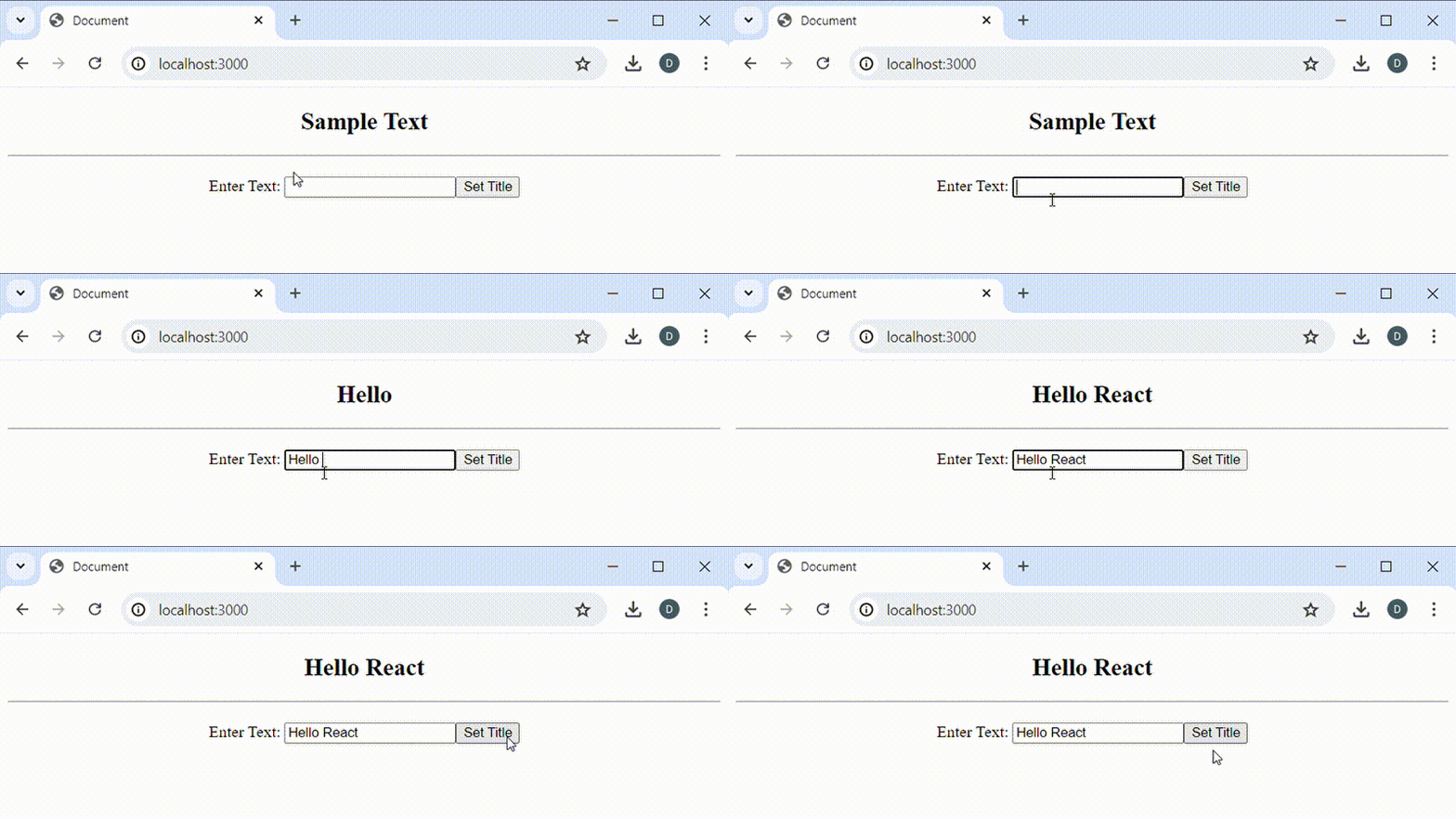
    useeffect-mount-only

    As we type in the input control, the content heading updates. However, the document title does not change after clicking on the button. This is because the useEffect hook call has an empty dependency array. Therefore, the side effect code does not execute when there is component update (re-render).

    Summary

    A React application may interact with code or resources that are outside React’s UI presentation. Such interactions are known as side effects. They include interactions such as connection with external API, browser DOM, localStorage, etc.

    To execute a side effect code, the React useEffect hook is invoked to run the function that executes side effect code. The side effect function may optionally return another function that will be called to perform side effect cleanups when the component is about to be unmounted from the DOM.

    React useEffect will always run a side effect function when the component is first mounted in the DOM. Its subsequent execution depends on a second argument passed to useEffect. This second argument is specified as an array of state or prop variables whose updates trigger the further execution of the side effect code.

    If an empty array is passed as dependency, then the useEffect hook call will never be run again. If state or prop variables are specified, then the side effect code will execute when any of the specified state or prop variables are updated.
  • Create React App from Scratch without create-react-app

    Many beginners to React applications development often begin their journey by creating their applications using the create-react-app. This is fine for beginner React developers who want to quickly grasp the basics of React. Even for advanced React developers, the create-react-app package is vital to quickly set up a React application. However, it is important, as a React developer, to know how to create a React app from scratch without using this tool. What create-react-app does is to install required dependencies and set up a configuration for building your React application.

    In this post, we are going to learn how to create a React app from scratch without the use of create-react-app tool. As you will shortly see, this is not a difficult task. We only need to install the required dependencies and set up our configuration file. That is exactly what create-react-app does behind the scene.

    If you are very new to React and want to understand its basic foundations without build tools, I recommend reading Introduction to React Apps Development for clear understanding. Here, we consider how to create a react app from scratch with build tools.

    Getting Started

    Before we get started, I will assume that you already have Node.js installed on your computer. If you have not done so, quickly download and install Node.js to continue. We will also be using node package manager (npm) to install dependencies and run our commands.

    I will also assume that you have basic knowledge of how React applications are developed.

    Although you can use any text editor to develop your React applications, I will be using Visual Studio Code in this post. If you are using a different code editor, that should work fine.

    Creating the Application Project

    Before installing our dependencies, let us first create our minimal application project. We will create a simple React application that outputs A Basic React App from Scratch! to the browser.

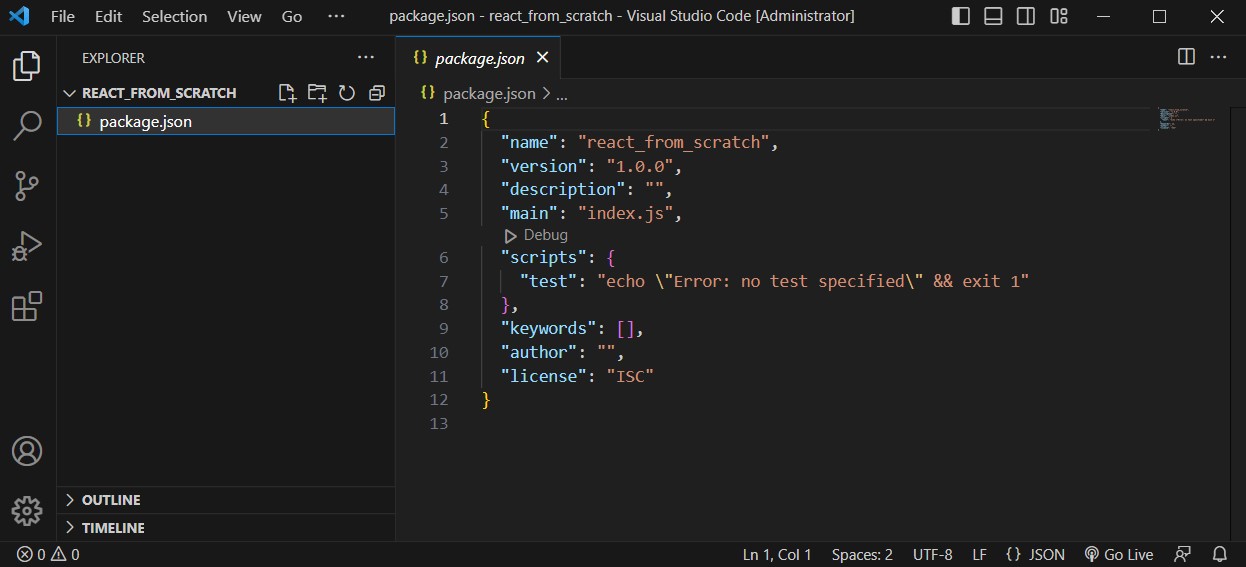
    Create a folder that will contain our project. With VS Code running, click on File menu, then on Open Folder from the drop down menu items. From the Terminal menu in VS Code, click on New Terminal from the dropdown menu items, and from the command prompt, type and execute the following command to initialise our project:

    Bash
    npm init -y

    We used -y in the above command so that we will accept the defaults. If you want to explicitly provide information such as application name, version, description, etc, then omit -y in the above command. In this case, you will be prompted to enter values for these information and others:

    The above command will create a package.json file that will contain information about our application. Additionally, it will also reference the various dependencies that our project requires. We will see this file updated as we install dependencies later in this post.

    Required Dependencies

    In order to create and run a React application, some dependencies are required. When using create-react-app, these dependencies are automatically installed for you. Since we are creating our own React app from scratch, we will be installing those dependencies ourselves. As we walk through these dependencies, we will learn the role of each dependency in creating a React application.

    React Dependency

    So, we want to create a React app from scratch, right? Then, one most important and inevitable dependency required is the React library. React is a User Interface (UI) library for building modern web and mobile applications and we will need to download the React package for our project.

    In order to develop our React app from scratch, we will need to install react and react-dom packages. Type and execute the following command to install them:

    Bash
    npm install react-react-dom

    Let us look at the role of these two packages that we have installed before proceeding.

    • react: This is the main react package that is required to create react applications. It contains classes and methods that our application will extend or use.
    • react-dom: This is the package that is required for displaying our React application in a web browser. In React terminology, we refer to this as rendering our application.
      But why do we need react-dom? As you may know, React can also be used to build applications that run on mobile devices such as on Android and iOS mobile devices. That requires react-native, which is a different rendering utility for React. Since we will be rendering our application in our web browser’s, we will need the rendering utilities for the browser, hence we installed react-dom.

    Babel Dependency

    You will understand that not all users will immediately update their browsers to current versions that support modern javascript syntax. Meanwhile, you may need to write your React application code in modern javascript syntax that supports modular design. This means that there should be a way to let older browsers understand our javascript code that we write using modern javascript syntax.

    Babel is a compiler (or transpiler) that converts our modern javascript code into backward-compatible javascript code which older browsers can understand. Additionally, babel is able to read and understand React code in JSX (Javascript XML). JSX is an extension of Javascript. In React applications development, it is used to describe how the UI of an application will look like when rendered on the page.

    By writing our javascript code in modern javascript syntax, we will need babel to convert our javascript code to earlier javascript versions that older browsers can understand. Additionally, we can enjoy the benefits of describing our React components in JSX.

    Let us install babel dependencies that will be required to build and run our React application. Type and execute the following command to install babel dependencies. Notice that we are saving the packages as dependencies for development only with –save-dev.

    Bash
    npm install --save-dev @babel/core @babel/cli @babel/preset-env @babel/preset-react

    Let’s briefly go through each of these installed babel packages to understand what they do:

    • @babel/core: This is the main package that is needed to use babel in our application
    • @babel/cli: This is a package that enables the use of babel from the command line interface (CLI).
    • @babel/preset-env: This is a preset that allows the use of latest javascript syntax in our application. Seen some current javascript syntax you would wish to implement? Don’t worry. That’s mostly catered for by babel with this preset. babel will take the responsibility of converting these new javascript syntax to earlier syntax for you.
    • @babel/preset-react: This is babel preset package that converts React JSX syntax code to classic javascript code that older browsers can understand.

    Webpack Dependency

    In classic web applications, javascript files are loaded into HTML documents using the <script></script> tags. For example, we are used to loading javascript files in html documents as follows:

    HTML
    <script type='text/javascript' src='./index.js'></script>

    You will normally find a few of such script tags either between the <head></head> tag or at the bottom of <body></body> tag of html documents.

    Modern web applications, such as React applications, are developed by creating reusable components as javascript modules. Each React component is usually written in its own javascript file.

    Now imagine there are about 30, 50, or 100, or even more React components in the application. Do we need to load all the individual modules by using separate <script></script> tags in the html document as we are used to? That will be very tedious. The solution is to bundle or combine all the related React components that make up the application into a single javascript file. This single generated javascript file, which will contain all the separate React components in the application, can be loaded into our html document with just a single <script></script> tag. Actually, this is exactly what the webpack package does for us.

    Webpack is a module bundler for modern javascript applications. It bundles all the referenced javascript modules in an application into a single javascript file which can be loaded once in html documents. For example:

    HTML
    <script type='text/javascript' src='./app.bundle.js'></script>

    In this case, app.bundle.js will contain all javascript modules referenced in the aplication.

    We will need to install webpack packages that we will need. Type and execute the following command to install webpack packages that we will need. Notice again that we are installing the packages as development dependencies by using –save-dev.

    Bash
    npm install --save-dev webpack webpack-cli webpack-dev-server

    Let’s take a brief look at the webpack packages that we just installed.

    • webpack: This is the main webpack package for bundling javascript modules into a single javascript file
    • webpack-cli: This package is required for running webpack from the command line interface
    • webpack-dev-server: This is http server that enables us to run and preview our React application in the browser at a specified port. It works similar to other http servers like live-server.

    A Quick Dependencies Review

    At this point, let us review the major dependencies that we have installed in our quest to create a react app from scratch without create-react-app. I must say we aren’t done yet. We are only taking a quick review of what we have covered so far.

    We required react packages to build our user interface to be rendered in the browser DOM. We therefore installed react and react-dom packages:

    Bash
    npm install react react-dom

    To convert our modern javascript code to earlier versions of javascript for support in older browsers, we installed babel packages:

    Bash
    npm install --save-dev @babel/core @babel/cli @babel/preset-env @babel/preset-react

    Since React components are usually written in separate javascript file modules, we need a way to combine all these separate javascript modules into a single javascript file. We therefore need webpack packages. Remember that webpack-dev-server is included so that we can preview our application in html server running on localhost. It is actually not a mandatory dependency.

    Bash
    npm install --save-dev webpack webpack-cli webpack-dev-server

    You see? Our lengthy discussions sum to these three main dependencies needed to create react app from scratch without create-react-app tool. However, there are two additional dependencies that will further ease our pain in creating react app from scratch without create-react-app. Let’s consider them next.

    Additional Dependencies

    As we have discussed, Babel will transpile our modern javascript syntax code into earlier versions of javascript code, then webpack will combine all the transpiled javascript codes into a single bundled javascript file. We can connect babel and webpack in the build process. The package that will enable us connect babel and webpack in this build process is babel-loader.

    Recall that webpack generates a bundled javascript file which contains all the transpiled javascript code. We need to load this bundled javascript file in our main html document file in a <script></script> tag like this:

    HTML
    <script src='./app.bundle.js'></script>

    Amazingly, we can install a dependency package that will automatically insert this code in our html document without us doing it ourself. This package is called html-webpack-plugin. The plugin will take a template html document, make a copy of it, and insert the <script></script> tag to load the bundled javascript code.

    Let us install these two dependencies as well. Type and execute the following command which will install babel-loader and html-webpack-plugin. Again, we install these as dev dependencies with –save-dev:

    Bash
    npm install --save-dev babel-loader html-webpack-plugin

    Let’s take a quick look at these two packages that we have installed:

    • babel-loader: This is needed to connect babel and webpack in generating the bundled javascript file. Webpack will load babel using this package.
    • html-webpack-plugin: This is needed in transpiling the javascript modules, and automatically load the bundled javascript file in our main html document using the <script></script> tag.

    We are now done with installing the dependencies required to create react app from scratch without create-react-app tool. Let us proceed to write our html and component for our minimal React application.

    Creating Application Source Files

    Let’s create a folder that will contain our application development files. We will name this folder src.

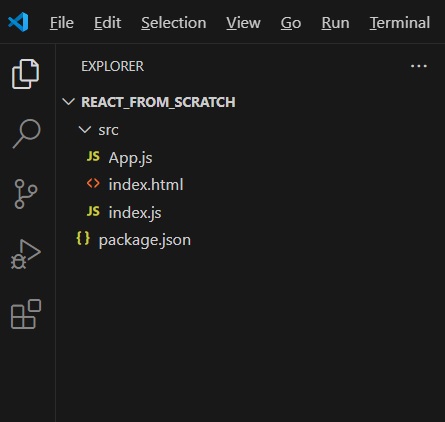
    From the Explorer pane in VS Code, click on the New Folder icon, and name the new folder src. Let’s create the files index.html, index.js, and App.js in the src folder. Our application directory structure will look like the following:

    react from scratch directory structure

    As can be seen, we have index.html, index.js, and App.js files contained in the src directory. This is not a mandatory application directory structure. It is however a common structure for a basic React app from scratch.

    HTML Code

    In the index.html file, insert the following html code snippet:

    HTML
    <!DOCTYPE html>
    <html lang="en">
    <head>
        <meta charset="UTF-8">
        <meta name="viewport" content="width=device-width, initial-scale=1.0">
        <title>React App from Scratch</title>
    </head>
    <body>
        <div id="root"></div>
    </body>
    </html>

    The div with id root is where our application will be mounted when run. In other words, it is the parent element of our React application.

    React Component

    In App.js, we will create our React component that will render the text A Basic React App from Scratch!. Type or copy the following code into the App.js file:

    JavaScript
    // import React
    import React from 'react';
    
    // The App component to return JSX for the HTML view
    export default function App() {
        return (
            <h2>A Basic React App from Scratch!</h2>
        );
    }

    Rendering Component

    The next thing we will do is to render our App component. Let us write the code that renders the App component in index.js. I assume you are already familiar with the code below which renders our App component.

    JavaScript
    import React from "react";
    import { createRoot } from 'react-dom/client';
    import App from "./App";
    
    // Get the parent/container element where we will mount our app
    // This is located in the index.html file
    const container = document.getElementById('root');
    
    // Create the root of our React application
    const root = createRoot(container);
    
    // render our React App component
    root.render(
        <App />
    );

    At this point, we are done with our application dependencies and source code. We should now configure webpack to build our application.

    Configuring Webpack

    The last step in our quest to create react app from scratch without using create-react-app is to configure webpack. The configuration will include instructions such as the entry javascript file to read, the files that babel should load for transpiling our modern javascript code, the output directory and files, etc.

    In the root directory of our application, we will create the webpack configuration file. Create a new javascript file and name it webpack.config.js. Click on the webpack.config.js file that we created to open it in the editor. We will first require the modules needed, and export a very minimal webpack configuration.

    JavaScript
    const path = require('path');
    const hwp = require('html-webpack-plugin');
    
    module.exports = {
        mode: 'development',
    };

    In the initial configuration above, we assume that we are at the development stage of the application. This is indicated by the mode property of the configuration. We set its value to development. Other value that can be set is production.

    We now take a discussion based approach at the various sections that we need for our webpack configuration.

    Input and Output Files

    As discussed earlier, babel will transpile our javascript code to earlier versions of javascript which older browsers can understand and run. This means we should indicate the entry javascript file that babel needs to read. Additionally, webpack will need information about the bundled file: Let’s update the configuration file to include these information:

    JavaScript
    const path = require('path');
    const hwp = require('html-webpack-plugin');
    
    module.exports = {
        mode: 'development',
        entry: path.join(__dirname, 'src', 'index.js'),
        output: {
            path: path.resolve(__dirname, 'dist'),
            filename: 'app.bundle.js'
        },
    };

    As can be seen, we have added entry and output properties to the configuration object. Let’s briefly look at them:

    • entry: This specifies the entry javascript file for our React application
    • output: This specifies the location of the bundled file. We have specified the directory in which the bundled file should be saved with path property. Additionally, we are explicitly specifying the name to be assigned to the bundled file with filename property.

    Module Rules

    Webpack needs to know how to handle various files it encounters when building our project. We provide such information to webpack in the module rules property, as can be seen added to the configuration. Module rules property of the configuration takes an array of object.

    JavaScript
    const path = require('path');
    const hwp = require('html-webpack-plugin');
    
    module.exports = {
        mode: 'development',
        entry: path.join(__dirname, 'src', 'index.js'),
        output: {
            path: path.resolve(__dirname, 'dist'),
            filename: 'app.bundle.js'
        },
        module: {
            rules: [
                {
                    test: /\.(js|jsx)/,
                    exclude: /node_modules/,
                    use: {
                        loader: 'babel-loader',
                        options: {
                            presets: ['@babel/preset-env', '@babel/preset-react']
                        }
                    }
                }
            ]
        },
    };

    Observe the inclusion of the module rules propery, beginning from line 11 with the module property. Let’s look into the property values provided in this section.

    • test: This is a test for files that are encountered in the build process. We are instructing webpack to check the file extensions. In this example, we are testing for files with the extensions .js and .jsx.
    • exclude: We are instructing webpack to not include any files in the node_modules directory
    • use: Here, we are giving instruction on what should be done when the test succeeds. That is, what should be done if there are matches for files with extensions .js and .jsx, as specified in test. If there are file matches, we instruct that webpack use babel-loader dependency package which we installed earlier. This loads babel which will transpile our React code into earlier versions of javascript for older browsers. We also pass @babel/preset-env and @babel/preset-react presets dependency packages as options when loading babel. Recall that we installed these as part of the babel dependency packages.

    Include Bundled File in HTML Document

    By default, webpack bundles our javascript code into a single javascript file, although we can instruct it to split our code into several files. If we want to use the file in our html document, we will need load the script in our html document using <script></script> tag. For example:

    HTML
    <!DOCTYPE html>
    <html lang="en">
    <head>
        <meta charset="UTF-8">
        <meta name="viewport" content="width=device-width, initial-scale=1.0">
        <title>React App from Scratch</title>
    </head>
    <body>
        <div id="root"></div>
        <!-- load the bundled javascript package -->
        <script src='./app.bundle.js'></script>
    </body>
    </html>

    To automatically include the bundled script in our html document as demonstrated on line 12, we will need the html-webpack-plugin dependency package that we installed earlier. Notice that we have already required this package in our configuration file on line 2:

    JavaScript
    const hwp = require('html-webpack-plugin');

    The html-webpack-plugin takes the index.html file in src directory as a template, and then makes a copy. It will then automatically insert the <script></script> tag that loads our bundled javascript file. For example:

    HTML
    <script src='./app.bundle.js'></script>

    To make this possible, we need to initialize html-webpack-plugin object and specify the html file which we want it to automatically load the bundled javascript file with the <script></script> tag. Remember that we imported html-webpack-plugin with require directive and named it hwp. You can give it any name of you prefer.

    JavaScript
    new hwp({
        template: path.join(__dirname, 'src', 'index.html')
    })

    We include this part in the plugins section of the webpack configuration.

    JavaScript
    const path = require('path');
    const hwp = require('html-webpack-plugin');
    module.exports = {
        mode: 'development',
        entry: path.join(__dirname, 'src', 'index.js'),
        output: {
            path: path.resolve(__dirname, 'dist'),
            filename: 'app.bundle.js'
        },
        module: {
            rules: [
                {
                    exclude: /node_modules/,
                    test: /\.(js|jsx)/,
                    use: {
                        loader: 'babel-loader',
                        options: {
                            presets: [
                                '@babel/preset-env',
                                '@babel/preset-react'
                            ]
                        }
                    }
                }
            ]
        },
        plugins: [
            new hwp({
                template: path.join(__dirname, 'src', 'index.html')
            })
        ]
    };

    We have specified our html document file index.html as a template to html-webpack-plugin. When build is completed, we will see that a copy of our index.html document has been made, and the a script that loads our bundled javascript file has been inserted in the newly generated index.html file.

    Development Server

    If we intend to preview our application in a web browser, we can do so. Webpack has development server which we can use to preview our web application. We installed it as webpack-dev-server during the installation of webpack dependencies. There are some properties we can set for this server:

    JavaScript
    devServer: {
        port: '3000',
        open: true,
        hot: true
    }

    We should include this in the webpack configuration file.

    JavaScript
    const path = require('path');
    const hwp = require('html-webpack-plugin');
    module.exports = {
        mode: 'development',
        entry: path.join(__dirname, 'src', 'index.js'),
        output: {
            path: path.resolve(__dirname, 'dist'),
            filename: 'app.bundle.js'
        },
        module: {
            rules: [
                {
                    exclude: /node_modules/,
                    test: /\.(js|jsx)/,
                    use: {
                        loader: 'babel-loader',
                        options: {
                            presets: ['@babel/preset-env', '@babel/preset-react']
                        }
                    }
                }
            ]
        },
        plugins: [
            new hwp({
                template: path.join(__dirname, 'src', 'index.html')
            })
        ],
        devServer: {
            port: '3000',
            open: true,
            hot: true
        }
    };

    Building the Application

    We are now ready to build our React application. In building our application, we give commands from the terminal. Therefore, let’s update our scripts in the package.json file first. Click on package.json file to view it in the editor.

    We should add commands that we need to invoke as property values to the scripts object. Update the scripts section to look as follows. Remember to save the file when done.

    JSON
    "scripts": {
        "test": "echo \"Error: no test specified\" && exit 1",
        "start": "webpack serve",
        "build": "webpack"
    },

    Before building the application, we can run to preview it in the browser. Type and execute the following command to start the webpack server:

    Bash
    npm run start

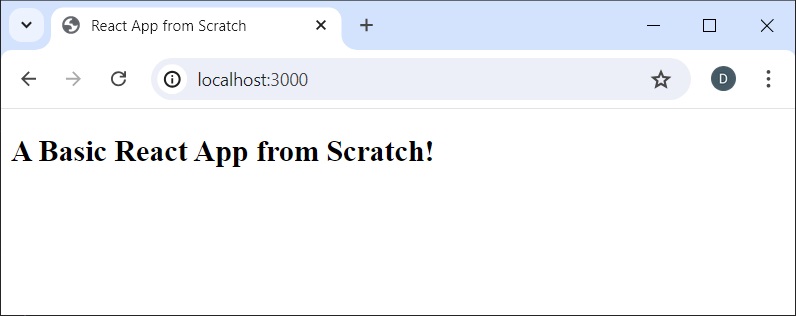
    The above command, when executed, will run “webpack serve” command which we included in the scripts section of the package.json file. If everything is well, you should see our application rendered in the browser. This can be seen in the following image:

    If you are able to see the result above in your browser, then a big congratulations to you. This means that you have been able to create a react app from scratch without using create-react-app.

    Before we conclude, let’s create a build of our application by running the build command.

    Bash
    npm run build

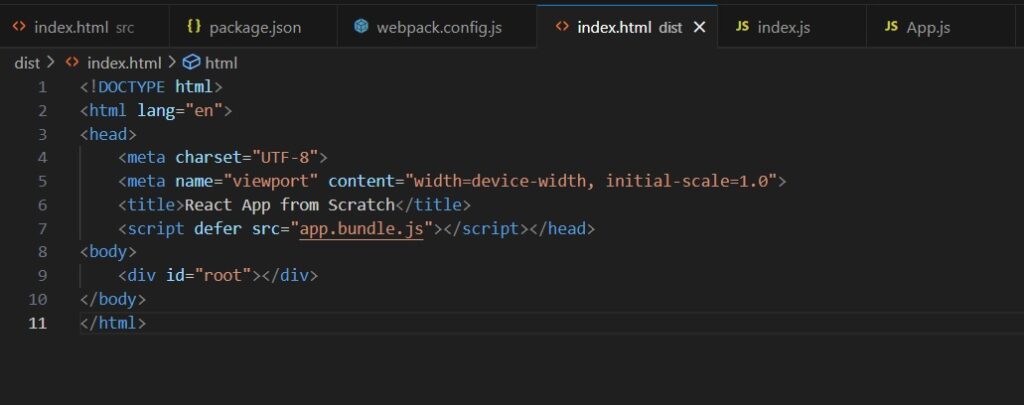
    The above command will bundle our javascript application into a single file. Recall that in the webpack configuration, we specified the output with filename app.bundle.js and path to be dist. If you open dist directory, you can see app.bundle.js file created. You can also see a copy of index.html in this directory. Click on index.html to view its content.

    dist index html

    Is this the content of our index.html file we created in the src directory? Yes, but with just a single line of code automatically inserted on line 7. The html-webpack-plugin package made a copy of our index.html file, and automatically loaded our bundled javascript file app.bundle.js in <script></script> tag for us on line 7.

    Congratulations once again for creating a React app from scratch without the use of create-react-app.

    Summary

    In this post, we embarked on a quest to create a React app from scratch without using create-react-app. This is an important adventure as a React developer. Understanding how this works behind the scenes gives us much insight about how things work.

    To create a React app from scratch without create-react-app, we had to install dependency packages and perform some configurations. The dependencies include babel, webpack, react, and html-webpack-plugin. In fact, create-react-app installs these and other dependencies automatically.

    As we intend to develop React app from scratch, we need to install React packages:

    Bash
    npm install react react-dom

    To be able to transpile our JSX and modern javascript code so that older browsers can understand, we installed babel dependency packages:

    Bash
    npm install --save-dev @babel/core @babel/cli @babel/preset-env @babel/preset-react

    React applications are developed as self-contained interacting components. To be able to combine all the individual pieces into a single file, and to be able to preview our app in a browser, we installed webpack dependency packages:

    Bash
    npm install --save-dev webpack webpack-cli webpack-dev-server

    For webpack to be able to communicate with babel in transpiling our javascript code, we required babel-loader package. We also needed html-webpack-plugin to automatically load the bundled javascript in our html document:

    Bash
    npm install --save-dev babel-loader html-webpack-plugin

    With all dependency packages installed, the last step is to configure webpack to build the application. As we have seen, the configuration instructs webpack on how to build the application and produce the javascript bundle.

    We have seen that creating a React app from scratch is not a difficult task. It only requires installing dependency packages and setting up a configuration file to build the application. That’s it: we have our own React app from scratch without the use of create-react-app.